
On this page: Install · Getting results files · Uploading · Points · Put it on your site · Schedule · Logo · Penalties · Banner · FAQ
1. Install
- In WordPress go to Plugins → Add New → Upload Plugin.
- Choose the Final Checkered zip, click Install Now, then Activate.
- A Final Checkered menu appears in your dashboard.
Updating? Deactivate and delete the old version first, then upload the new one. Your seasons, races and penalties are kept.
2. Getting results files from iRacing
iRacing isn’t issuing the API keys a website would need to pull results automatically, so you download each race’s file yourself. It only takes a few seconds per race.
- On the iRacing members site open Leagues → My Leagues, your league, then Seasons and your season’s Schedule.
- Click Results on a race.
- Click the small download icon at the bottom left of the results window and pick Download JSON.
Shortcut: if you know the race’s subsession number, go straight to members-ng.iracing.com/web/racing/leagues/my-leagues?subsessionid=NUMBER and the results window opens on its own.
Use the JSON when you can. It includes heats, consolations and each driver’s paint scheme. CSV files work too, but number panels will show without colors.
3. Uploading
Go to Final Checkered → Upload Results and drag the files onto the box. You can drop a whole season at once.
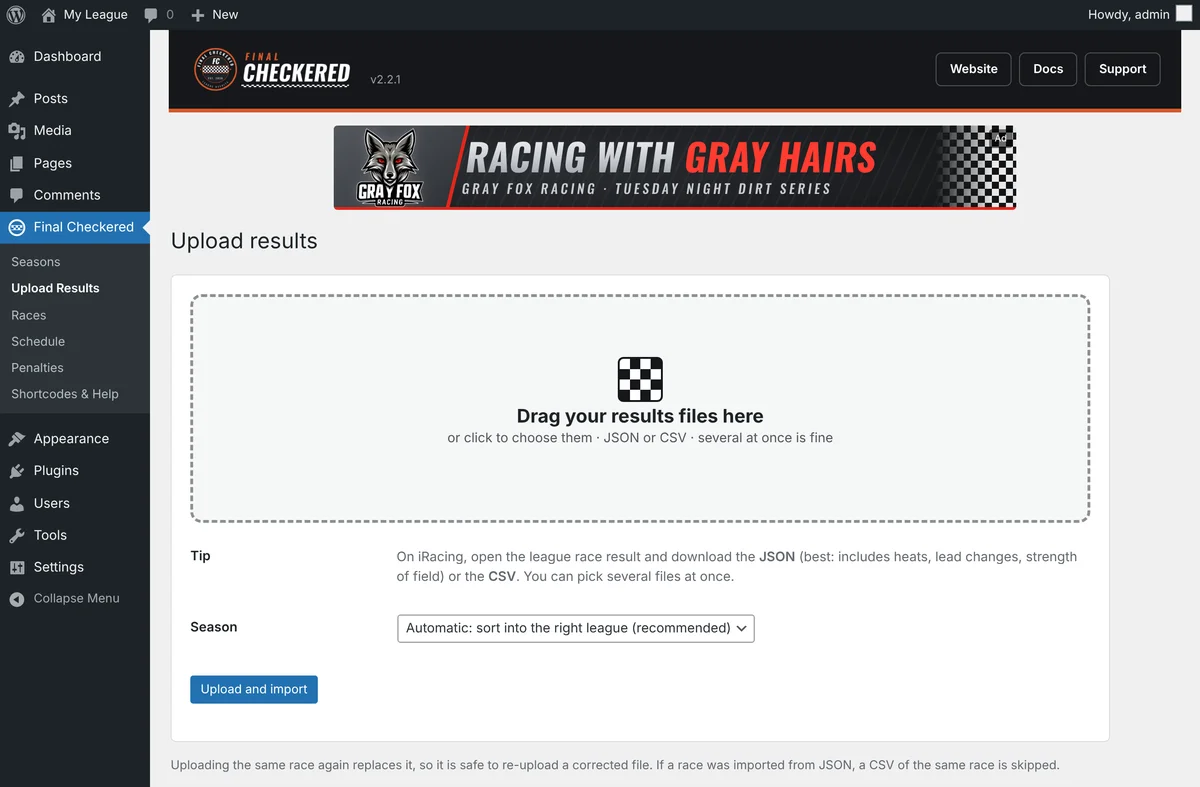
- Automatic (recommended) puts each race in the right season using iRacing’s league and season IDs, and makes a new season the first time it sees one.
- Pick a season from the list to force files into it. Do this once if you created a season by hand; after that Automatic will recognise it.
- Uploading a race again replaces it and keeps your race title and penalties.
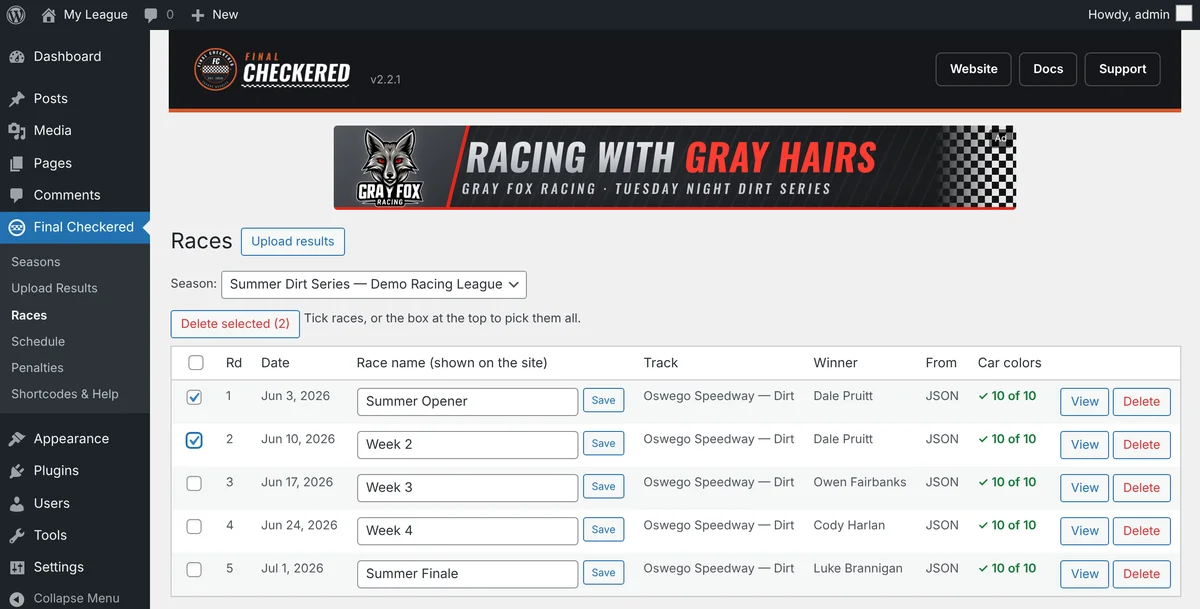
Check Final Checkered → Races afterwards. The Car colors column shows a green ✓ when paint schemes came through.
Uploaded the wrong files? On the Races screen tick the races you want gone (or the box at the top for all of them) and click Delete selected. Then upload the right ones.
4. Points
Open Final Checkered → Seasons → Edit settings. Choose a points system:
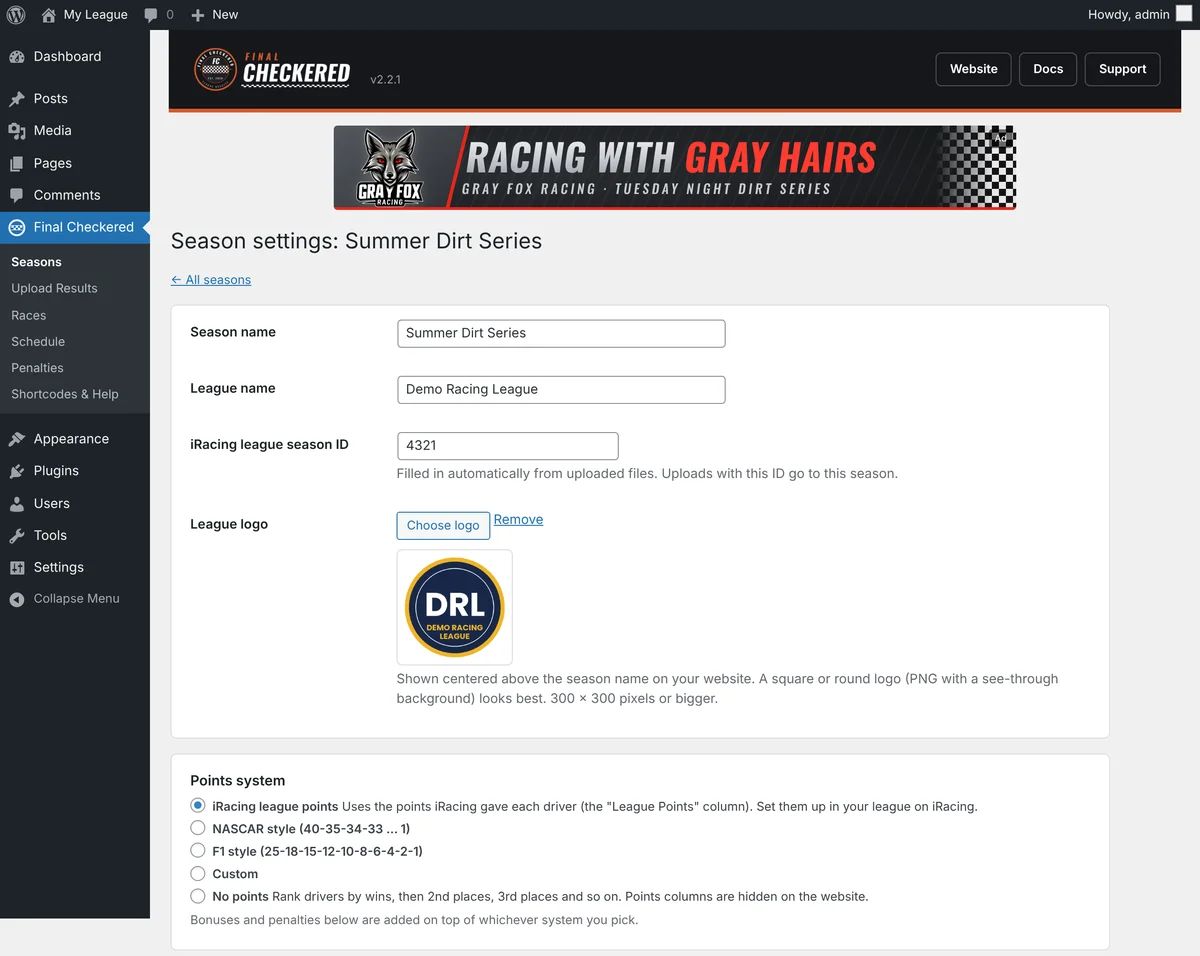
- iRacing league points: uses the points iRacing put in the file.
- NASCAR or F1 style tables.
- Custom: type your own list, e.g.
50, 45, 42, 40, plus points for everyone else. - No points: drivers are ranked by finishes and wins.
Then tick any extras: bonus points, heat and consolation points, drop worst races, minimum laps, DNF/DNS rules, incident penalties, divisions and teams. Save and the standings are re-scored straight away.
Pole bonus: choose whether pole goes to the fastest qualifier or to the driver who started the feature 1st. In heat-race formats those are often different drivers. If a race file has no qualifying, the 1st starter gets it.
5. Put it on your website
A shortcode is a little bit of text in square brackets. You paste it on a page and WordPress swaps it for your standings. Most leagues only ever need this one:
[final_checkered_leagues]It shows all your leagues with their standings, results and drivers.
How to add it
- In WordPress go to Pages → Add New and give it a title, like Standings.
- Click the + button, type shortcode and pick the Shortcode block.
- Paste
[final_checkered_leagues]into it. - Click Publish, then View Page. Done.
That’s all most people need. New seasons show up on their own. You never have to change the page.
More options (only if you want something different)
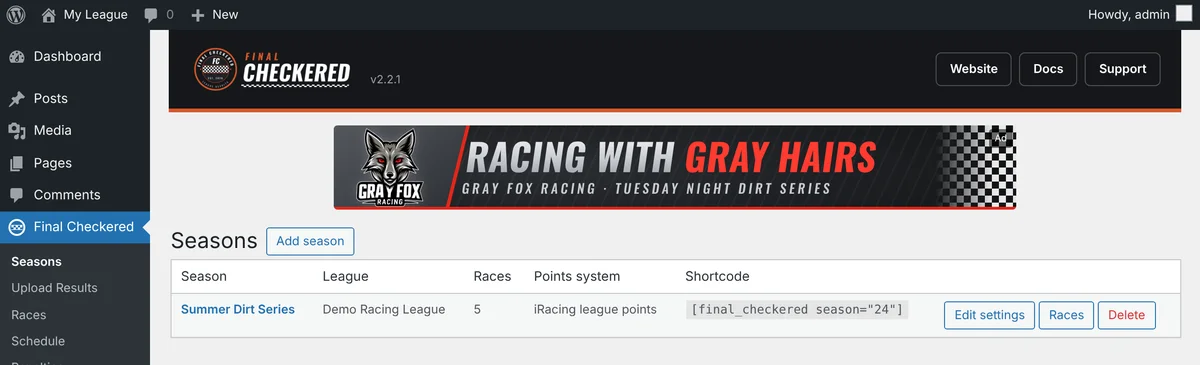
Every season has a number. You’ll find it on the Seasons screen in the Shortcode column. Swap 1 below for your season’s number.
| I want to show… | Paste this |
|---|---|
| Just one season | [final_checkered season="1"] |
| Only some seasons | [final_checkered_leagues seasons="1,2"] |
| All leagues, first one already open | [final_checkered_leagues open="first"] |
| Standings table only | [final_checkered_standings season="1"] |
| Latest race result only | [final_checkered_results season="1" race="latest"] |
| Team standings | [final_checkered_teams season="1"] |
| No banner on this page | add banner="no", e.g. [final_checkered_leagues banner="no"] |
6. Schedule
List your races ahead of time so drivers know what’s coming. Go to Final Checkered → Schedule, pick the season and add each race: date, track and (optional) a name and time.
- Whole season at once: click Add a whole season at once and paste one race per line, like
2026-11-18, Eldora Speedway, Week 1. - Your league gets a Schedule tab by itself. Races that have been run show a Results button; the rest show No Results, and the next race is marked.
- When you upload a result, it’s matched to the scheduled race on the same date. Nothing else to do.
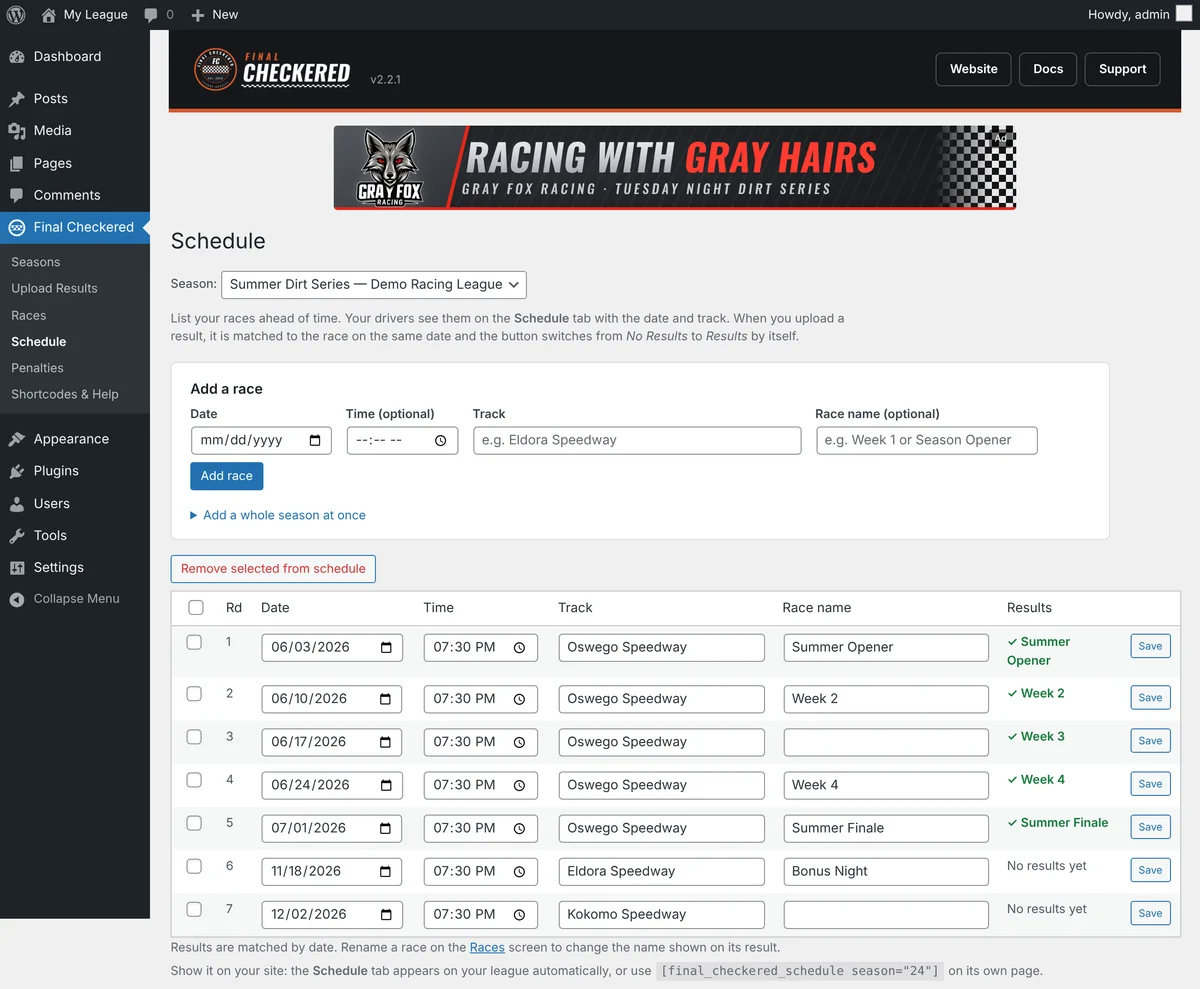
Want the schedule on its own page? Use [final_checkered_schedule season="1"].
7. Your league logo
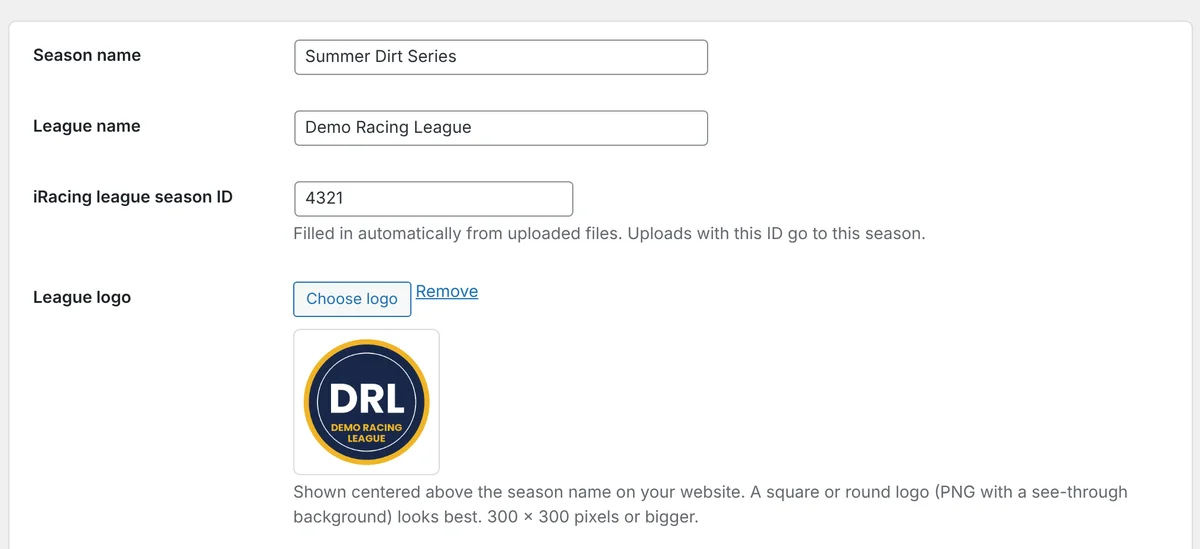
Go to Seasons → Edit settings, click Choose logo next to League logo and pick your image. It shows centered above the season name, and small on the folded-up league bars. A square or round PNG with a see-through background looks best.
8. Penalties and bonuses
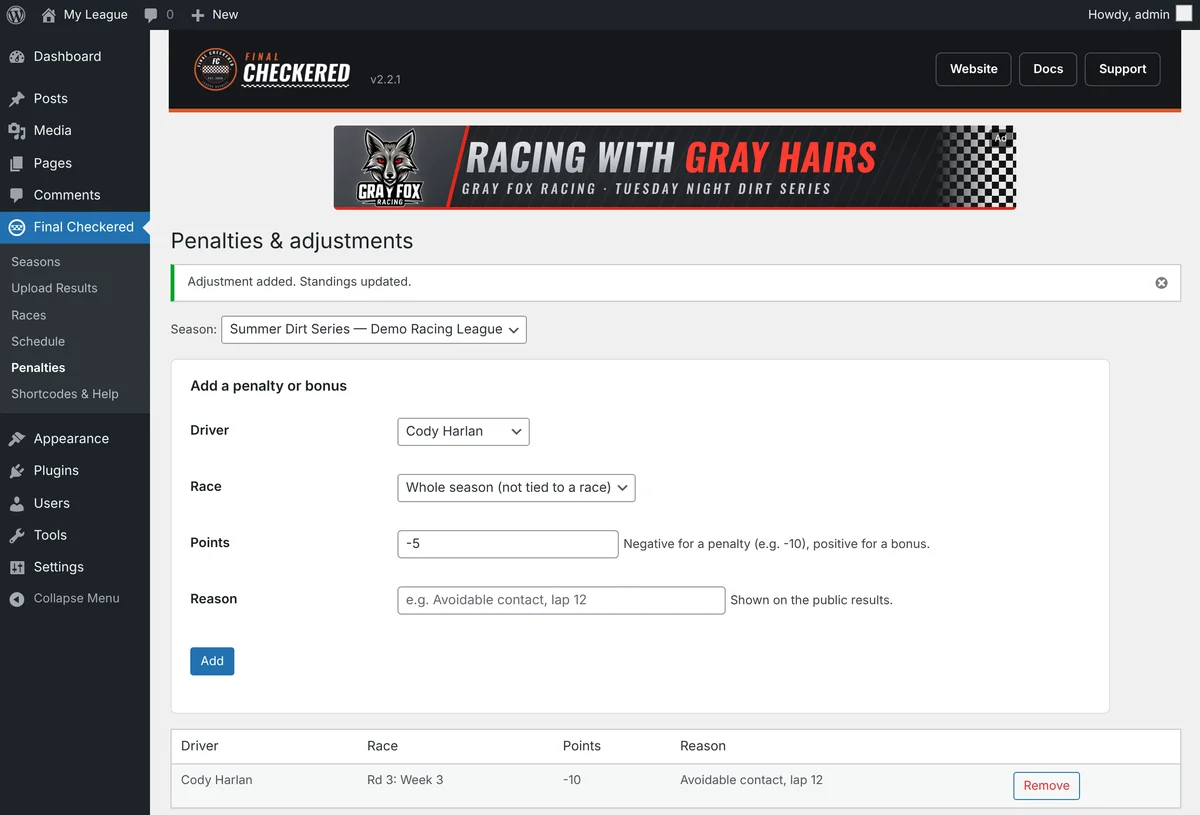
Use Final Checkered → Penalties to add or take away points for a driver in a race, with a note. They show in the standings and stay attached even if you re-upload that race.
9. Adding a banner
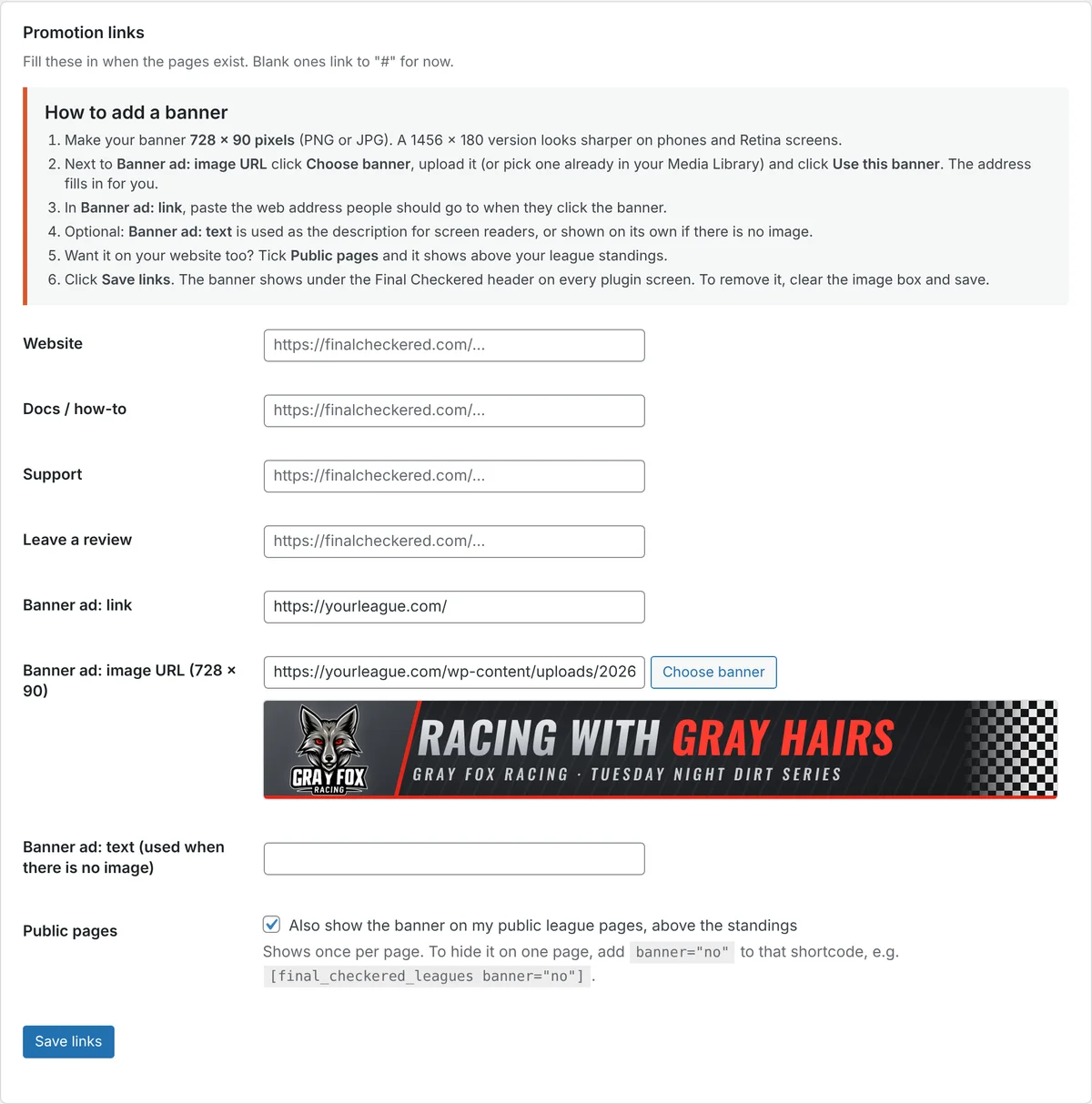
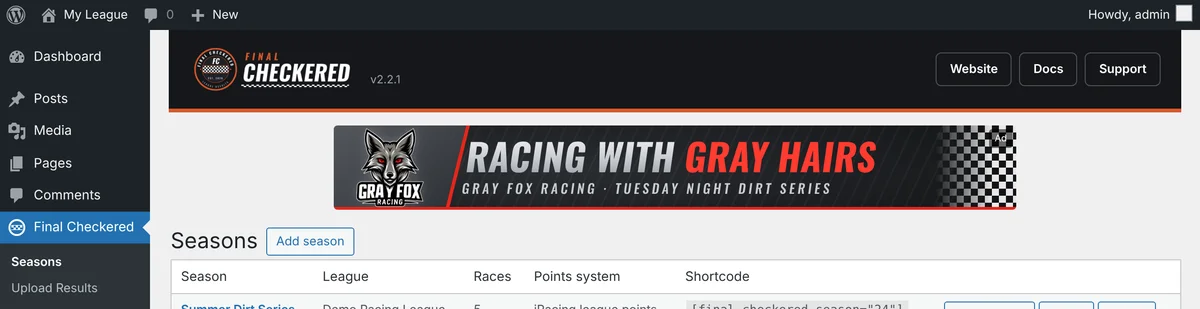
You can show a 728 × 90 banner for your league or a sponsor at the top of the Final Checkered admin screens and, if you like, above the standings on your website.
- Make the banner 728 × 90 pixels (PNG or JPG). A 1456 × 180 version looks sharper on phones and Retina screens.
- Go to Final Checkered → Shortcodes & Help and scroll to Promotion links.
- Click Choose banner, upload your image or pick one from the Media Library, then click Use this banner.
- Paste where the banner should go into Banner ad: link.
- To show it on your website too, tick Public pages.
- Click Save links. To remove it, clear the image box and save.
FAQ
Do I need an iRacing account?
Yes. Your league runs on iRacing, and the results files come from the iRacing members site, so the person uploading results needs an active iRacing membership. Your drivers need one to race too. Sign up at iracing.com →
Can drivers download a race result?
Yes. Every race page has a Download results (spreadsheet) button. It gives a file with the feature, heats and consolations that opens in Excel, Google Sheets or Numbers.
Why don’t results pull in automatically?
iRacing has paused new API access for websites. When that changes, automatic imports are at the top of the list.
What is the colored box with the number?
Each driver gets a number panel painted with the colors saved in the results file: their 3 main colors, number colors and number slant. The type of car they drove is printed underneath, so it works the same for modifieds, sprint cars, late models or anything else.
Why doesn’t it look exactly like my car in iRacing?
It uses your colors and number, not logos, sponsors or custom paint files.
Why doesn’t my panel match my Trading Paints car?
The panel uses the colors from your iRacing paint scheme, because that’s what’s in the results file. Trading Paints designs aren’t included. To make them match, set your iRacing paint colors and number colors close to your Trading Paints car. iRacing explains how in its Paint Shop guide (My Content → pick your car → Paint Car, then Save).
Changes show from your next race on. Races already run keep the colors from that night’s file.
Why is my number panel plain gray?
That race was uploaded as a CSV, or before the update that reads paint. Upload the JSON for that race again. Nothing else is lost. The Car colors column on the Races screen shows a green ✓ when it worked.
A driver is missing from the standings.
Drivers who haven’t started a feature yet and have no points are hidden, so the table isn’t full of zeros. That includes someone who only ran a heat or never took the green. To show them anyway, tick Show drivers who haven’t started a feature yet under Seasons → Edit settings → Standings.
Where are the qualifying results?
On each race page, open Qualifying, heats & consolation under the feature results. Qualifying comes from the JSON file. Races uploaded before version 2.4.1 need their JSON uploaded once more to pick it up. Your race names and penalties are kept.
Automatic made a new season instead of using mine.
Delete the new season, then upload once more with your season picked from the list. From then on Automatic will use it.
My standings didn’t change after an update.
A caching plugin may be showing an old copy of the page. Clear its cache, or turn it off while you set up your season.
Still stuck? Get in touch.